Macro Warning (spreadsheet templates): It is strongly recommended that you save a copy of your file prior to using the macros. If the results are not what you intended, you can recover without reentering the data for the entire workbook.
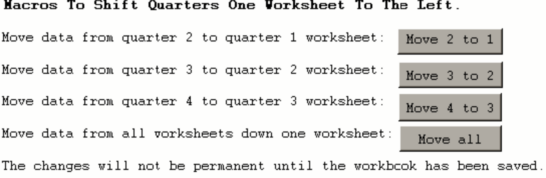
The macros in the workbooks (shown above) move the data one quarter to the left. Thus after a quarter has past, the entire workbook can be shifted to the left with one click. The fourth quarter is the only quarter for which data had not been previously entered. Minor (hopefully) adjustments will most likely be needed for the three quarters for which you have already entered data previously. Click on the “Move all” macro and the data from the second quarter moves to the first quarter, the data from the third quarter moves to the second quarter and the data from the fourth quarter moves to the third quarter. Alternatively the quarters can be moved individually.
Clicking on “Move 2 to 1” moves the data from the second quarter to the first quarter. Clicking on “Move 3 to 2” moves the data from the third quarter to the second quarter. Clicking on “Move 4 to 3” moves the data from the fourth quarter to the third quarter. Do not move the data more than once a quarter (and move the quarters in ascending order if done for single quarters) or you will soon have a jumbled mess of meaningless data.